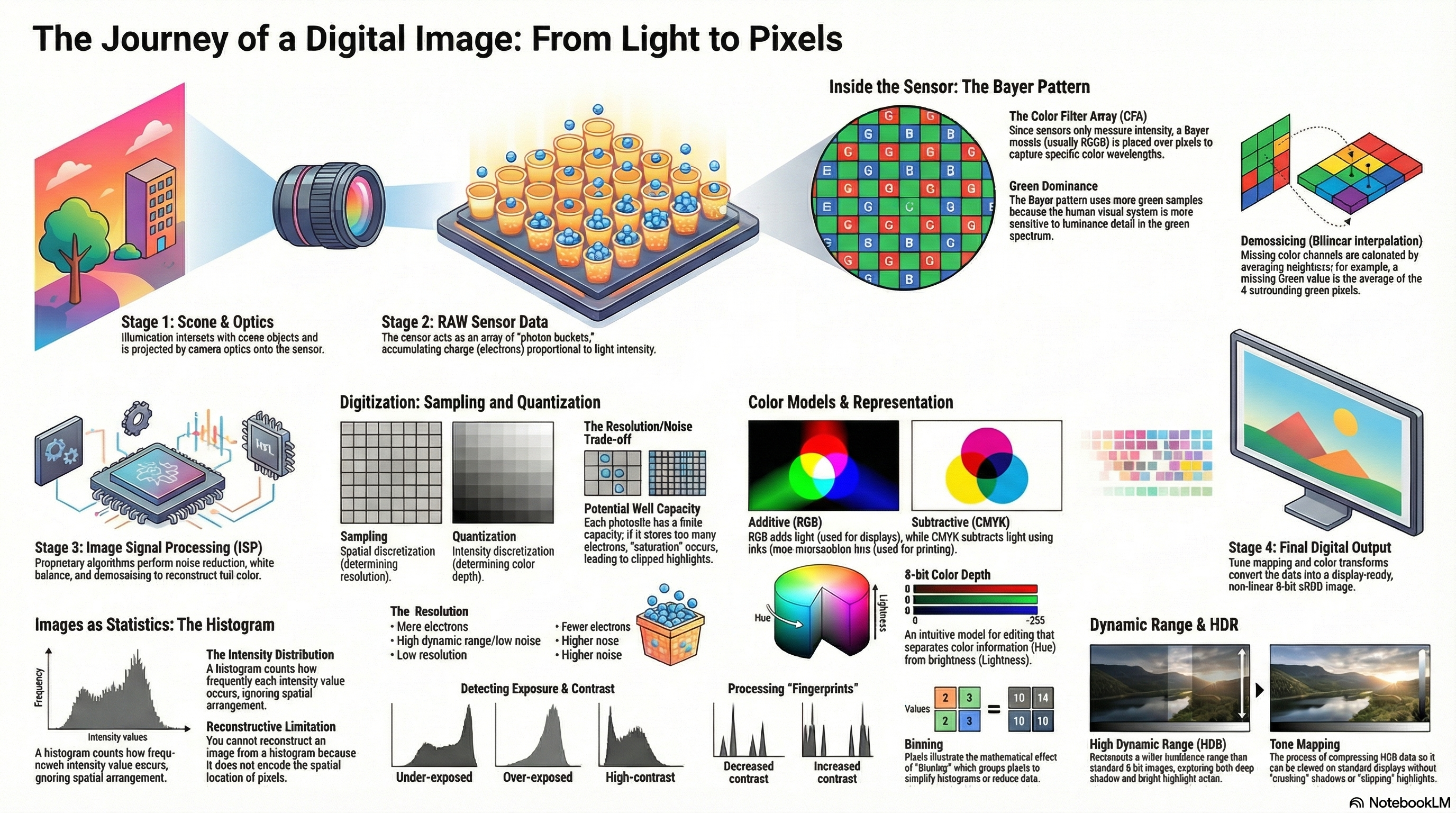
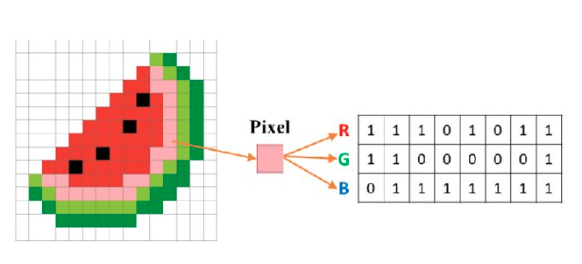
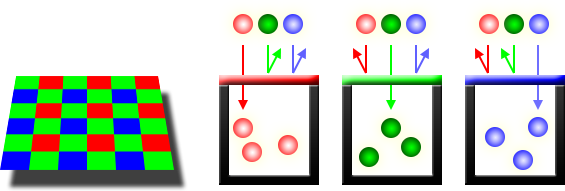
Each pixel behaves like a photodiode (potential well) that accumulates electrons as photons strike it during exposure. Charge is proportional to light intensity × exposure time. When the well fills to its limit, saturation occurs. After exposure, the analog front-end (AFE) reads the photosites row-by-row, converting the charge into analog voltage signals, which are then converted to digital values by the analog-to-digital converter (ADC).
Photons
→
Sensor photosite electrons accumulate
→
AFE analog voltage
→
ADC digital value
→
RAW image
The complete capture pipeline
From Light Source to Digital File
Turning physical light in the scene into a digital file saved on storage involves the following sequential stages:
Light Source
→
Subject
→
Lens
→
Microlens
→
Mosaic Filter (CFA)
→
Image Sensor
→
Analog Electronics
→
ADC
→
Digital Processor
→
Buffer Memory
→
Storage (Card)
Structure of a photosite
Vertical Stack Layer Sequence (Top-to-Bottom)
Each individual pixel photosite is structured vertically as a stack of different layers:
1. Microlensfocuses incoming rays
→
2. Color Filterfilters specific spectrum (R, G, or B)
→
3. Photositeconverts photons to charge
→
4. Potential Wellaccumulates generated electrons
Pixel size trade-off
Larger pixels
Bigger potential well → higher full well capacity (holds more electrons)
Higher dynamic range (more information collected before saturation)
Better low-light / SNR (larger surface area collects more photons)
Lower spatial resolution (at same physical sensor size)
Smaller pixels
Smaller potential well → lower full well capacity (saturates faster)
More noise sensitivity (fewer photons collected per photosite)
Reduced dynamic range (highlights clip and shadows crush quicker)
Fundamental trade-off: Resolution vs. noise performance. You cannot maximize both simultaneously.
Color Filter Array (CFA) and Bayer pattern
Each photosite can only measure ONE color component (R, G, or B). A CFA mosaic places color filters above each pixel. The Bayer pattern uses 2 green, 1 red, 1 blue per 2×2 block — because human vision is most sensitive to luminance detail, which green carries.
Bayer RGGB pattern
R
G
R
G
B
G
R
G
R
Demosaicing (bilinear example)
At a center R pixel (R=100), average the neighbors:
G ≈ (80+84+78+82)/4 = 81
B ≈ (30+32+28+34)/4 = 31
Result: (R,G,B) = (100, 81, 31) Not simple averaging — must preserve edges, avoid artifacts.
Why 2 greens? Luminance perception in human vision relies heavily on the green channel. More green samples → better luminance resolution → sharper-looking images.
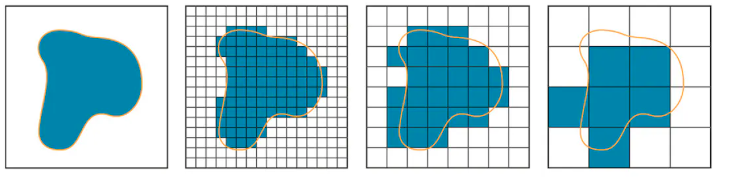
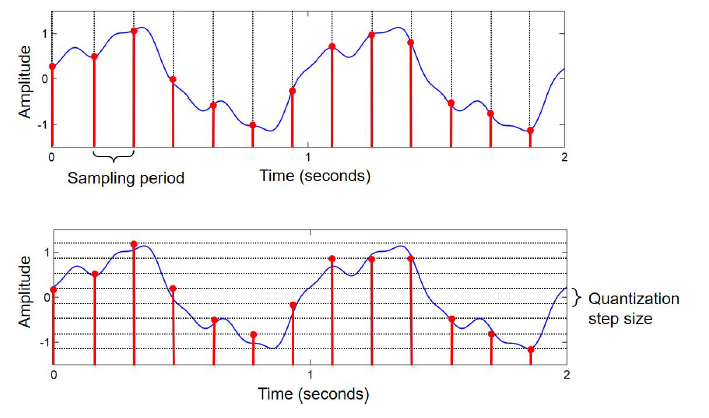
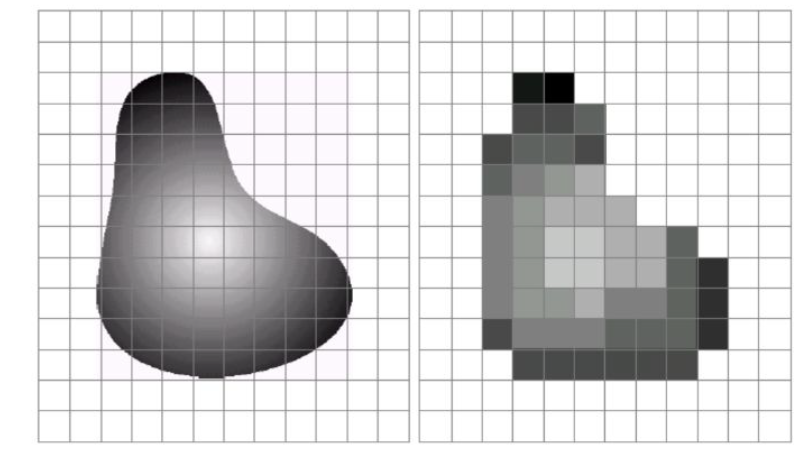
The two digitization processes
Sampling
What: Measure analog signal at discrete spatial points
Sampling Rate: Defined as the number of samples per unit spatial area.
Trade-off: Higher rate yields finer detail and less aliasing, but increases storage, bandwidth, and compute.
Artifact: Pixelation / aliasing
Quantization
What: Map continuous intensity measurements to discrete numeric levels
Determines: Intensity (color) depth
Trade-off: More levels improve approximation accuracy, but require more bits per pixel and raise storage/transmission costs.
Artifact: Quantization noise / banding
Key distinction: Sampling = WHERE you measure (spatial). Quantization = HOW PRECISELY you record the value (intensity).
Bit depth and levels
8-bit grayscale
256 levels (0–255)
8-bit RGB (24-bit)
256³ = 16.7M colors
12-bit RAW
4096 levels per channel
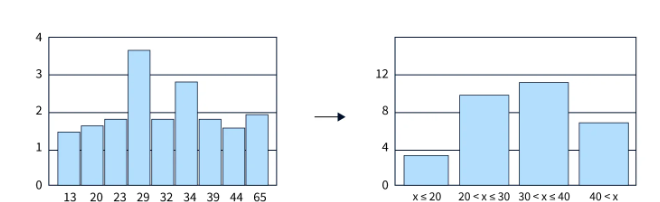
Binning
What is binning?
Groups neighboring pixels (e.g. 2×2 block) and combines their values. Reduces spatial resolution but increases SNR (more photons per "super-pixel"). Also used in histograms to group intensity ranges into coarser buckets for readability.
1. RAW→2. Pre-processing→3. Noise reduction→4. Demosaicing→5. White balance→6. Color transform I→7. Color manip.→8. Tone mapping→9. Color transform II→10. sRGB Output
1. RAW: Mosaiced, linear, 12-bit data preserving sensor measurements.
Key exam fact: Many CV failures originate from early ISP stages (noise, demosaicing, white balance), not the vision algorithm itself.
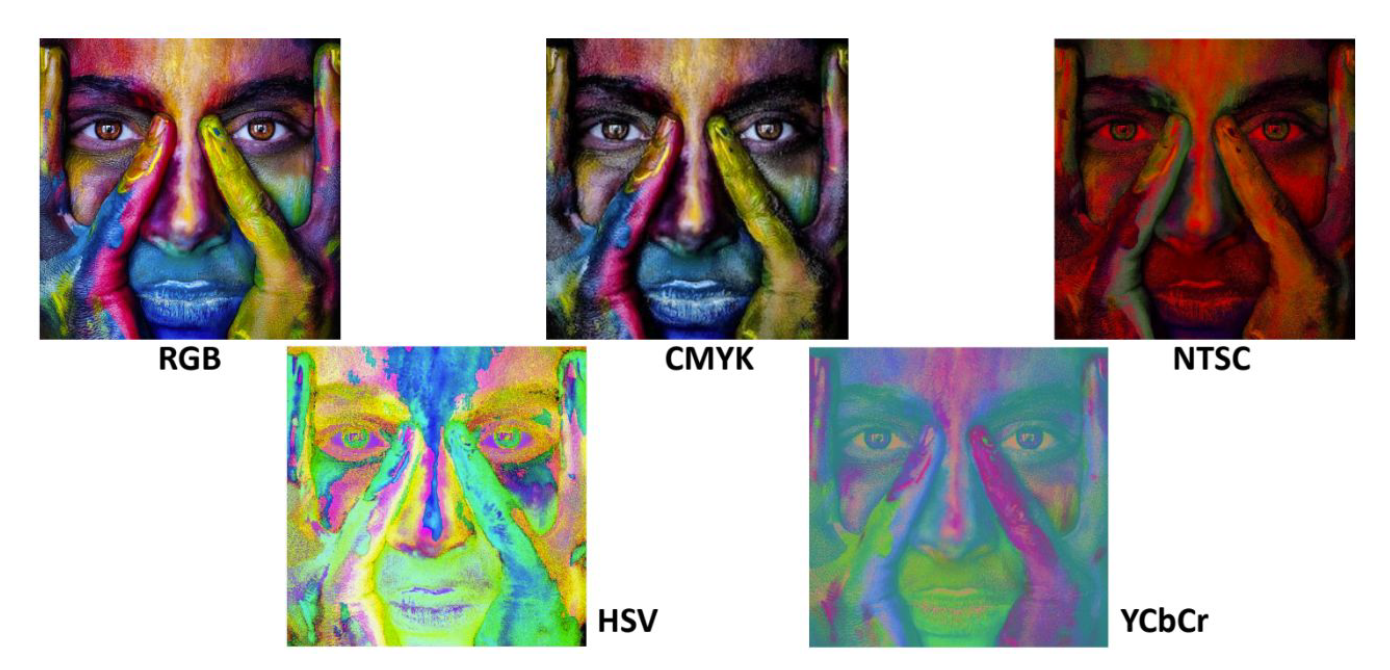
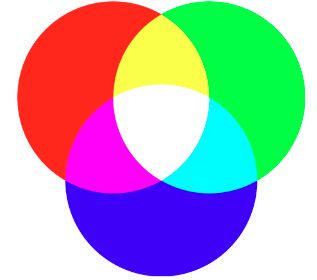
RGB — additive model
Colors formed by adding light. Each channel: 0–255 in 8-bit. Additive mixing: Red + Blue = MagentaGreen + Blue = CyanRed + Green = YellowR+G+B = White
Canonical: Black=(0,0,0) White=(255,255,255) Red=(255,0,0)
Why Red, Green, and Blue (RGB)?
Physiological Connection to Human Vision
The choice of Red, Green, and Blue as primary colors is directly rooted in human biology: the spectral sensitivities of the cone cells in our retinas. The human eye has three types of cones:
S-cones (Short-wavelength): Sensitive to Blue.
M-cones (Medium-wavelength): Sensitive to Green.
L-cones (Long-wavelength): Sensitive to Red.
Separation & Gamut: Choosing R, G, and B primary colors maximizes the physical separation between cone responses. This separation enables a large, practical color gamut, allowing monitors and projectors to reproduce a wide range of humanly perceivable colors via additive mixing.
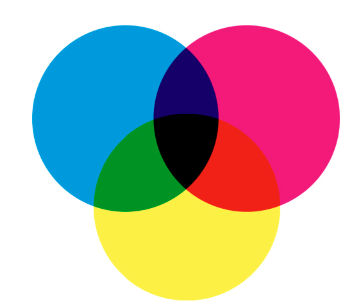
CMY / CMYK — subtractive model
Colors formed by subtracting light via inks/pigments. CMYK adds K=Black separately — more efficient than mixing C+M+Y at full intensity. Used ONLY for printing. Not suitable for digital image sensing or processing.
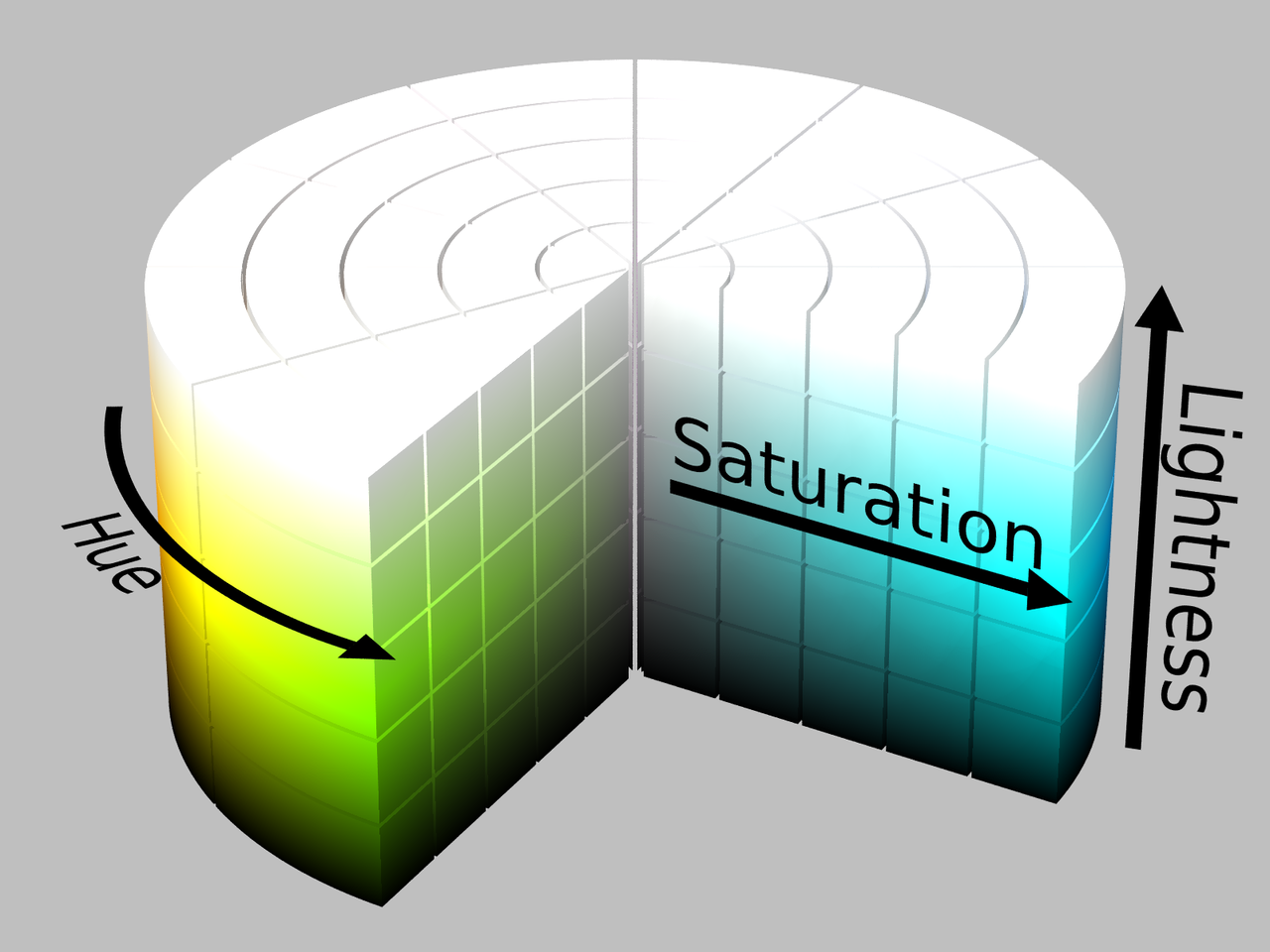
HSL / HSV — intuitive separation
Hue
Angle on color wheel (0°–360°)
0°=Red · 60°=Yellow · 120°=Green 180°=Cyan · 240°=Blue · 300°=Magenta
Saturation / Lightness / Value
S: 0%=gray → 100%=pure color L (HSL): 0%=black · 50%=mid · 100%=white V (HSV): 0%=black · 100%=brightest
RGB → HSV conversion formulas
Normalize R,G,B ∈ [0,1] first
V = max(R, G, B)
minVal = min(R, G, B)
diff = V - minVal
S = diff / V [if V ≠ 0, else S = 0]
If diff == 0:
H = 0°
Else:
If V == R: H = 60 × (G − B) / diff
If V == G: H = 120 + 60 × (B − R) / diff
If V == B: H = 240 + 60 × (R − G) / diff
If H < 0: H = H + 360
RGB → HSL conversion formulas
V_max = max(R,G,B), V_min = min(R,G,B)
diff = V_max - V_min
L = (V_max + V_min) / 2
If diff == 0:
S = 0
Else:
If L < 0.5: S = diff / (V_max + V_min)
If L ≥ 0.5: S = diff / (2 − (V_max + V_min))
H = same as HSV formula above (if diff == 0 then H = 0)
All color spaces at a glance
Space
Components
Use case
Key limitation
RGB
R, G, B
Cameras, displays, DL
Mixes brightness + color
HSV/HSL
Hue, Sat, Val/Light
Segmentation, tracking
Not perceptually uniform
YCbCr
Y, Cb, Cr
Video compression, face det.
Less intuitive visually
CMYK
C, M, Y, K
Printing only
Not for digital sensing
HSI
Hue, Sat, Intensity
Medical, satellite, agri
Limited standardization
What is pixel intensity?
Digital Representation of Measured Light
In a digital image, intensity is the discrete numeric value assigned to a pixel representing the integrated light energy measured at that photosite. It is the result of the sensor's charge readout being amplified, conditioned, and digitized by the Analog Front-End (AFE) and ADC.
For 8-bit grayscale images, intensity is stored as an integer from 0 (completely dark/black) to 255 (completely bright/white).
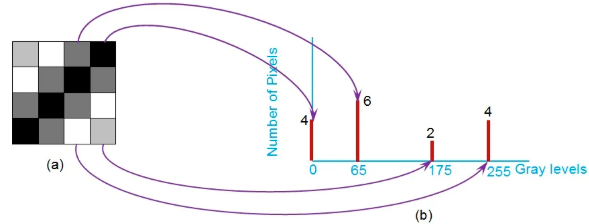
What a histogram is
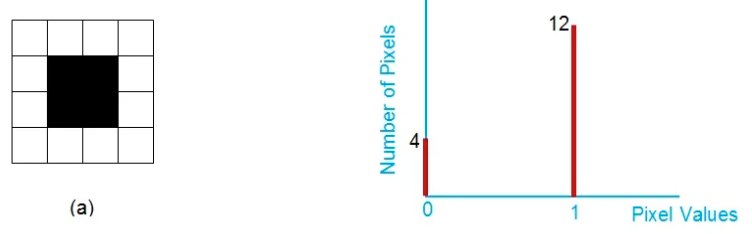
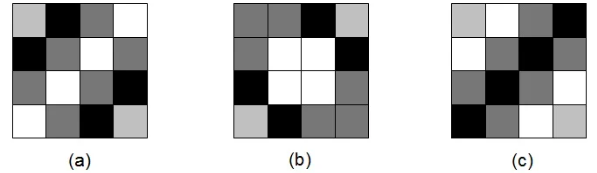
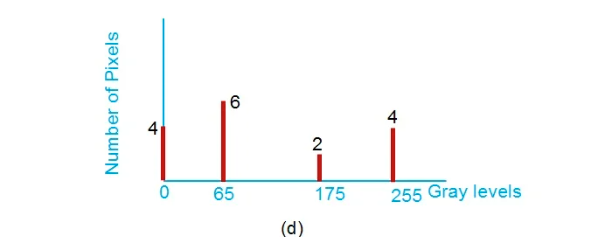
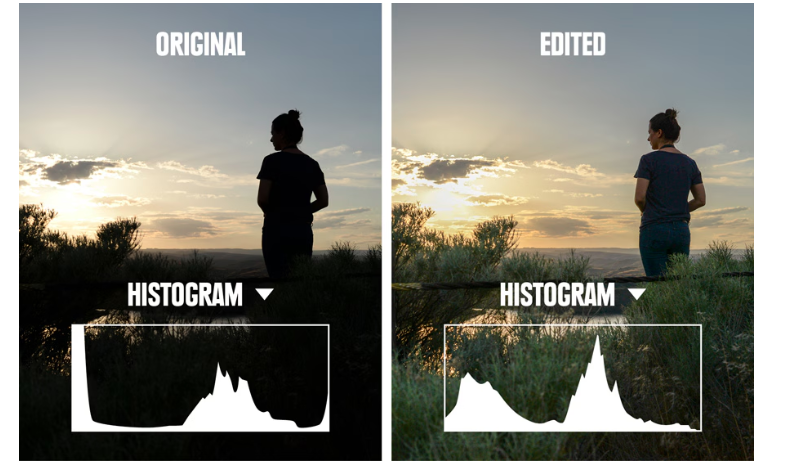
A count of how many pixels have each intensity value. X-axis = intensity (0–255 for 8-bit). Y-axis = pixel count. A statistical summary — it completely discards spatial information.
Critical limitation: Two images with completely different spatial structures can have identical histograms. You CANNOT reconstruct the original image from its histogram alone. This is fundamental, not a bug.
Reading histograms — what each shape means
Under-exposed
Counts concentrated at LOW values
Image looks dark / muddy
May have clipping at 0
Over-exposed
Counts concentrated at HIGH values
Image looks washed out
May have clipping at 255
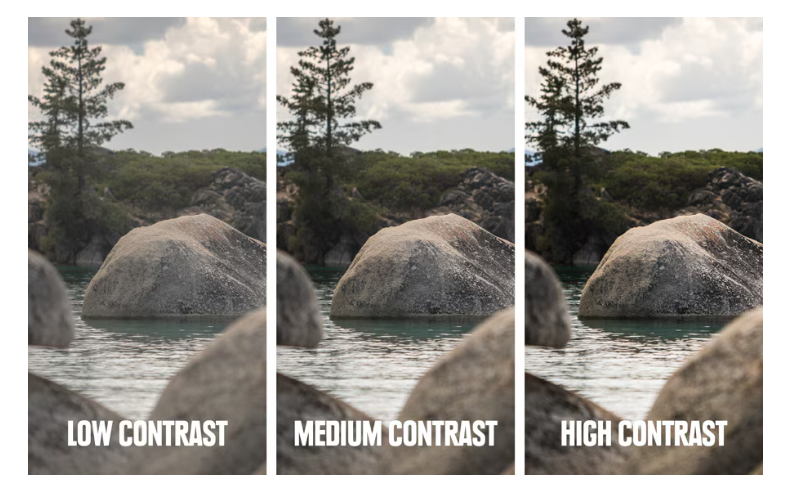
High contrast
Wide spread across full range
Objects easily distinguishable
Large min-to-max difference
Low contrast
Narrow band of values
Objects hard to distinguish
Compressed tonal range
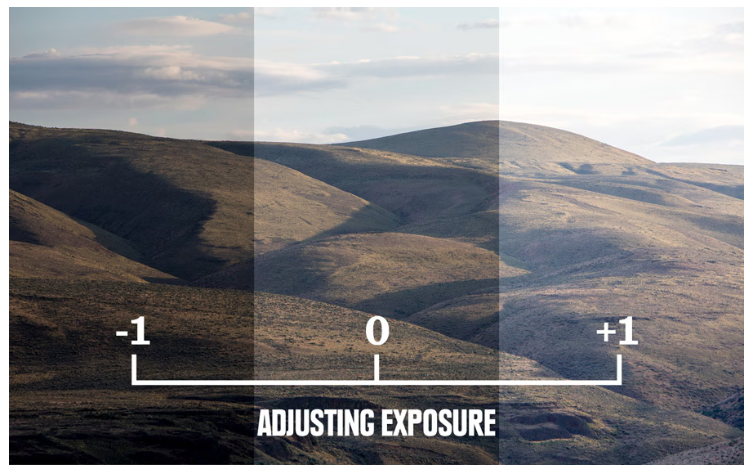
Exposure effects on histogram
↓ exposure → histogram shifts left↑ exposure → histogram shifts rightSevere clip → spike at 0 or 255
Color histograms — two approaches
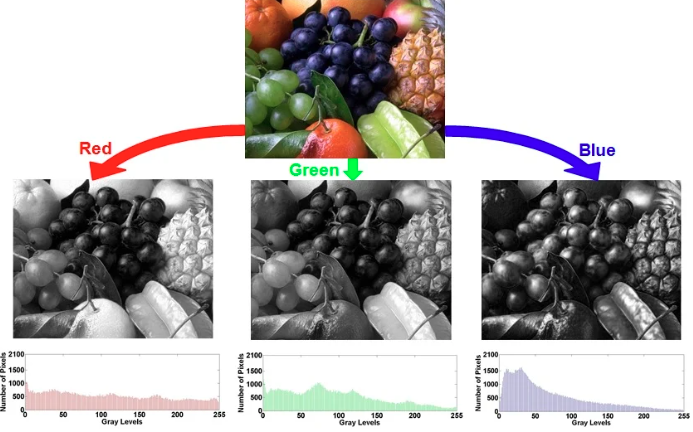
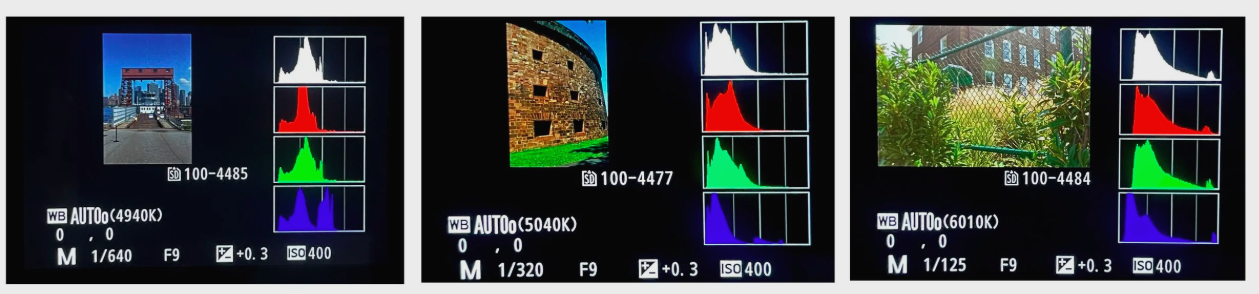
Per-channel (R, G, B separately)
Shows each channel's distribution
Good for: lighting, saturation, dynamic range
Problem: Two images with different colors can have identical R/G/B histograms — the marginal distributions lose color relationships
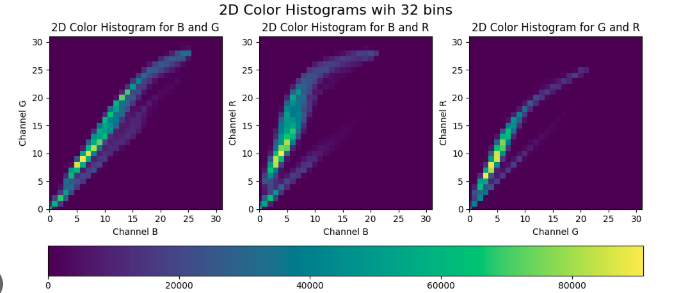
Joint / 2D histogram
Shows relationship between two channels
X=channel1, Y=channel2, brightness=count
Diagonal = strong correlation
Requires aligned, same-size images
Why per-channel isn't enough: Marginal distributions don't capture joint color relationships. A red image and a cyan image can have identical G and B histograms if the counts align. Use 2D/joint histograms to resolve this ambiguity.
Histogram artifact fingerprints
Saturation / clipping
Large spike at 0 (crushed shadows) or 255 (blown highlights). Caused by under/over-exposure or out-of-range ISP operations.
Gaps in histogram
Empty bins between occupied bins. Signature of contrast INCREASE / stretch operation — bins get spread apart.
Spikes / compression
Tall isolated spikes. Signature of contrast DECREASE — multiple values get merged into one bin. Also appears after GIF quantization (few colors → few occupied bins).
JPEG compression
Modifies intensity distribution. Creates characteristic patterns in the histogram due to DCT coefficient quantization.
Dynamic range — core definitions
LDR (Low Dynamic Range)
Single exposure, typically 8-bit.
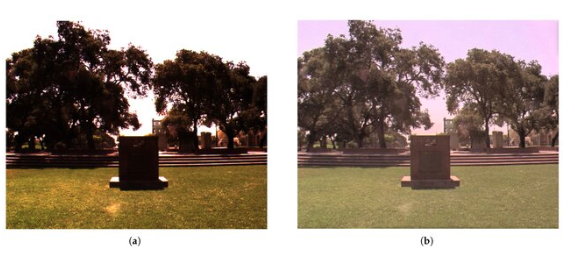
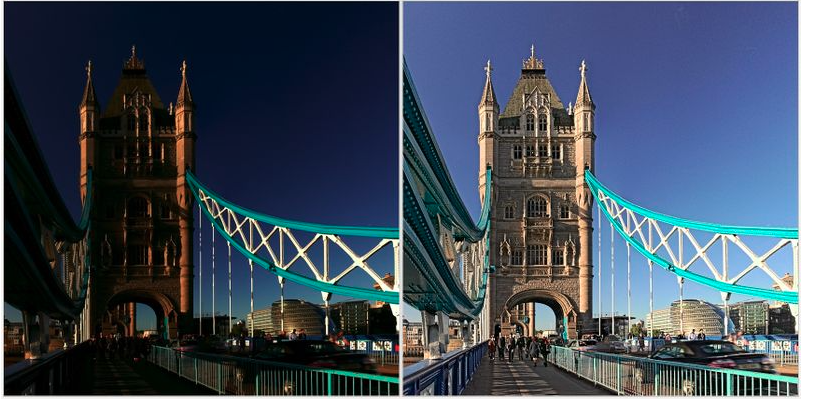
Cannot capture deep shadow detail and bright highlights simultaneously.
Forces a compromise: either highlights clip (sky blows to white) or shadows crush (dark areas lose detail).
HDR (High Dynamic Range)
Multiple bracketed exposures combined, or high-precision RAW formats.
Faithfully preserves details at both exposure extremes.
Requires tone mapping to compress range for standard displays.
HDR ≠ many tones. Wide dynamic range just means the range between darkest and brightest is large. You can still have few distinct tones within that range (due to quantization). Conversely, narrow dynamic range can have many tones densely packed.
HDR acquisition strategy
Bracket exposures, then merge
Capture same scene at e.g. −2EV, 0EV, +2EV. Combine: shadow detail from bright exposure, highlight detail from dark exposure. Result: HDR image → tone-map for display.
Tone mapping
Compresses wide luminance range into displayable 8-bit range. Keeps detail in both shadows and highlights visible. Strongly affects the "look" of the image. Not reversible — once tone-mapped, original HDR data is not recoverable.
Key practical rule
Capture HDR, then downsample. It's easy to reduce dynamic range from a wide capture. It's impossible to recover clipped or saturated data — interpolation cannot recreate missing information once the sensor saturated or quantization removed it.
Detecting processing artifacts via histograms
Histogram pattern
What caused it
Effect on image
Spike at 0 or 255
Clipping due to severe under-exposure or over-exposure.
Irreversible loss of shadow or highlight detail.
Gaps between bins
Contrast increase / stretch (values are pushed apart).
Block artifacts and ringing along high-contrast boundaries.
Live histogram simulator
Adjust exposure and contrast to see how the histogram shape changes. Watch for clipping at the extremes.
Exposure (shift)0
Contrast (scale)100%
Distribution
HSV color explorer
Hue (H) °200°
Saturation (S) %80%
Value (V) %90%
RGB → HSV calculator
Enter RGB values to compute HSV manually.
R (0–255)
G (0–255)
B (0–255)
Visual Cheat Sheet Summary
50-Question Practice Quiz
This comprehensive practice quiz contains 50 multiple-choice questions loaded directly from the lecture database.
Score: 0 / 0 answered
25-Question True/False Practice
Answer each statement, reveal optional hints, and review the explanation after submitting.
Figures Extracted from the Original Lecture Document
These figures are preserved in their original document order as a complete visual reference. Captions identify the source part and figure number; explanatory text remains in the study-guide sections.
Lecture 3 — original figure 1Lecture 3 — original figure 2Lecture 3 — original figure 3Lecture 3 — original figure 4Lecture 3 — original figure 5Lecture 3 — original figure 6Lecture 3 — original figure 7Lecture 3 — original figure 8Lecture 3 — original figure 9Lecture 3 — original figure 10Lecture 3 — original figure 11Lecture 3 — original figure 12Lecture 3 — original figure 13Lecture 3 — original figure 14Lecture 3 — original figure 15Lecture 3 — original figure 16Lecture 3 — original figure 17Lecture 3 — original figure 18Lecture 3 — original figure 19Lecture 3 — original figure 20Lecture 3 — original figure 21Lecture 3 — original figure 22Lecture 3 — original figure 23Lecture 3 — original figure 24Lecture 3 — original figure 25